
Self-Service Check-In for Wix Bookings
Clients check themselves in on a front-desk tablet. First, the kiosk confirms the booking and, if you turn them on, a valid waiver and payment. Anyone who isn't cleared is asked to see staff.
- Booking and check-in window
- Waiver, via Wix Intake Forms
- Payment or plan redemption
14-day free trial on eligible sites. Billed by Wix. Requires Wix Bookings.

How check-in works at the front desk
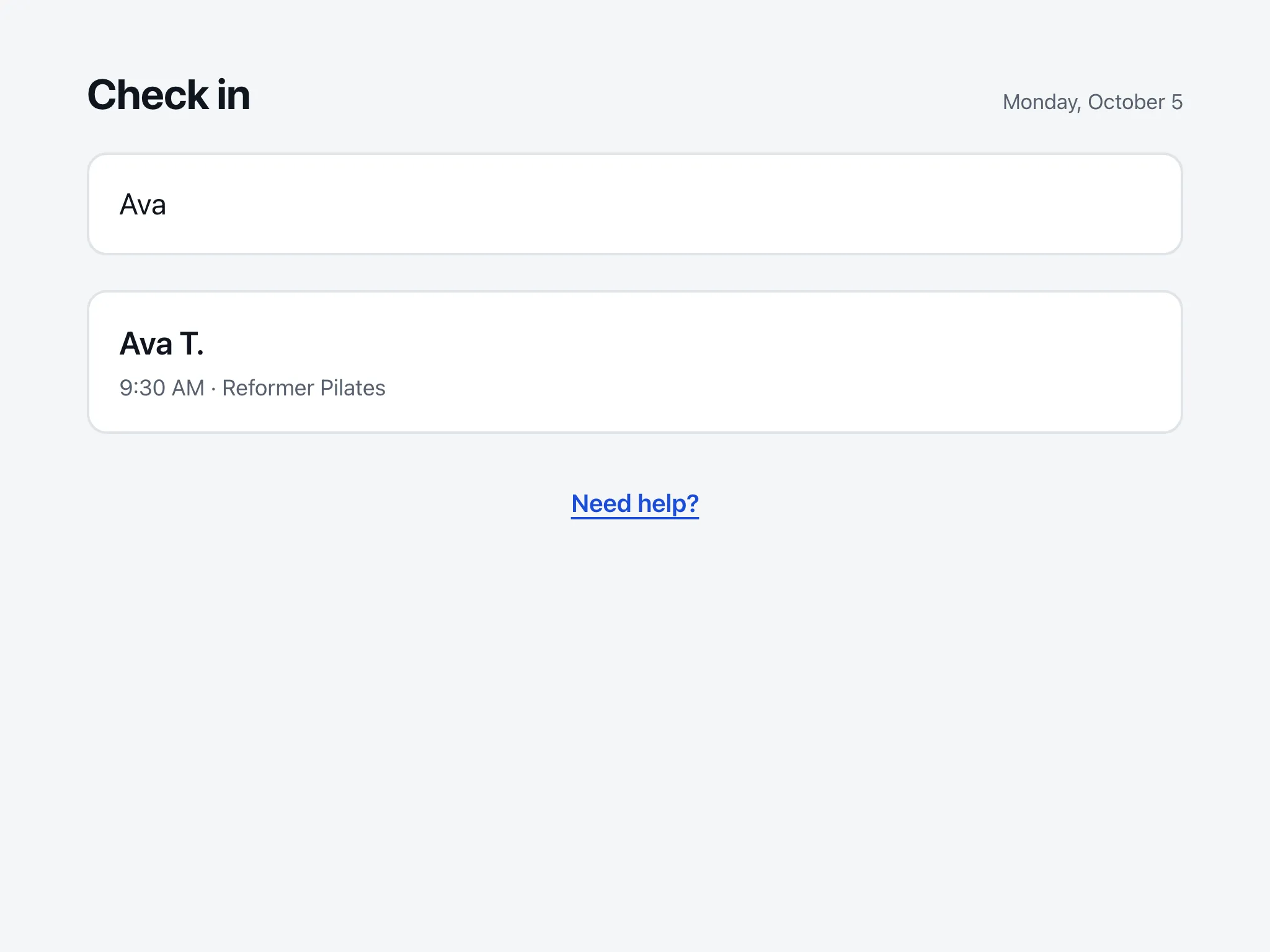
A client types their name
Three or more letters bring up today's matching bookings: first name, last initial, service and time.
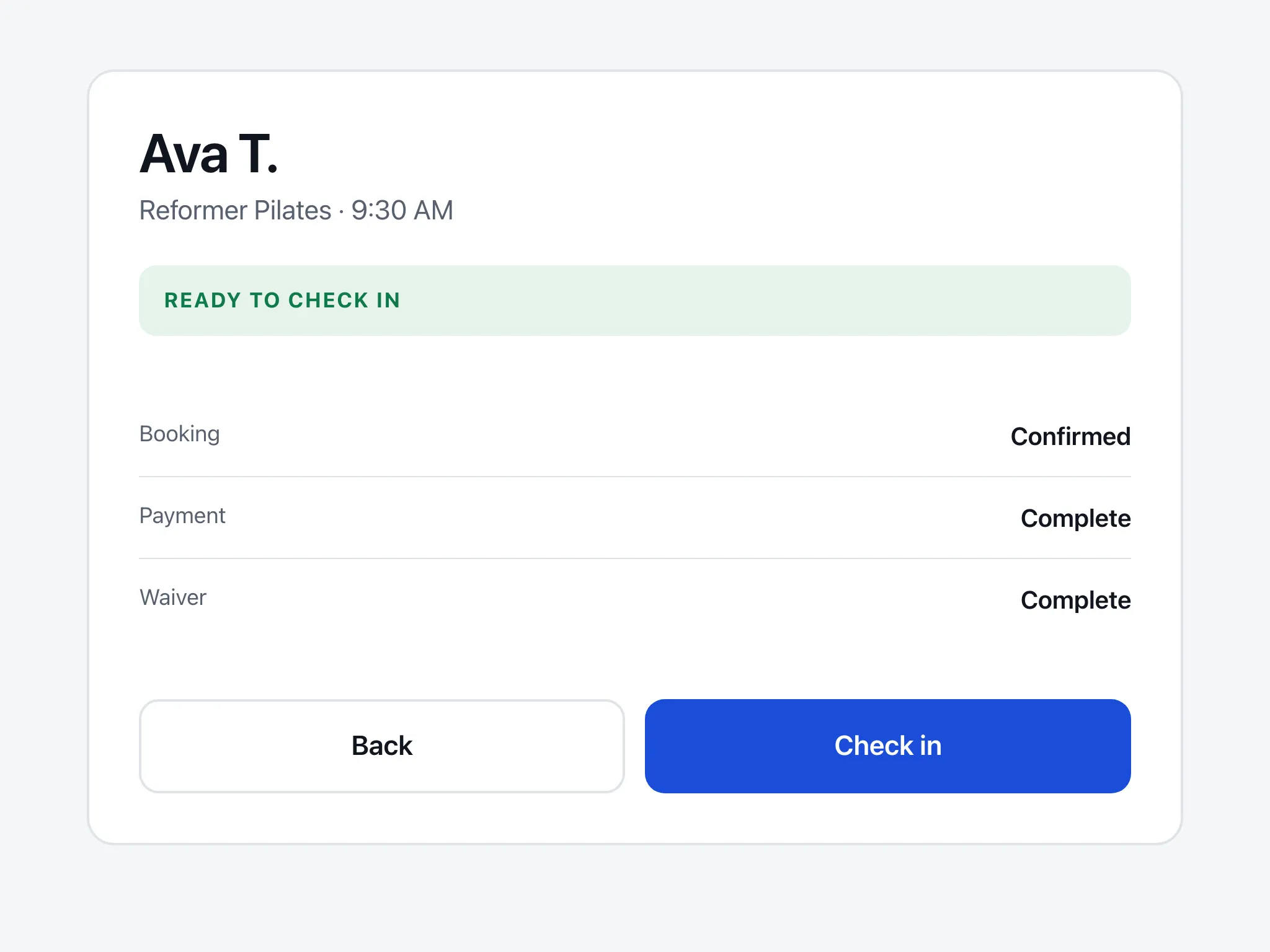
The kiosk checks the booking
A "Ready to check in" card appears only when the booking, check-in window, waiver and payment all pass your rules.
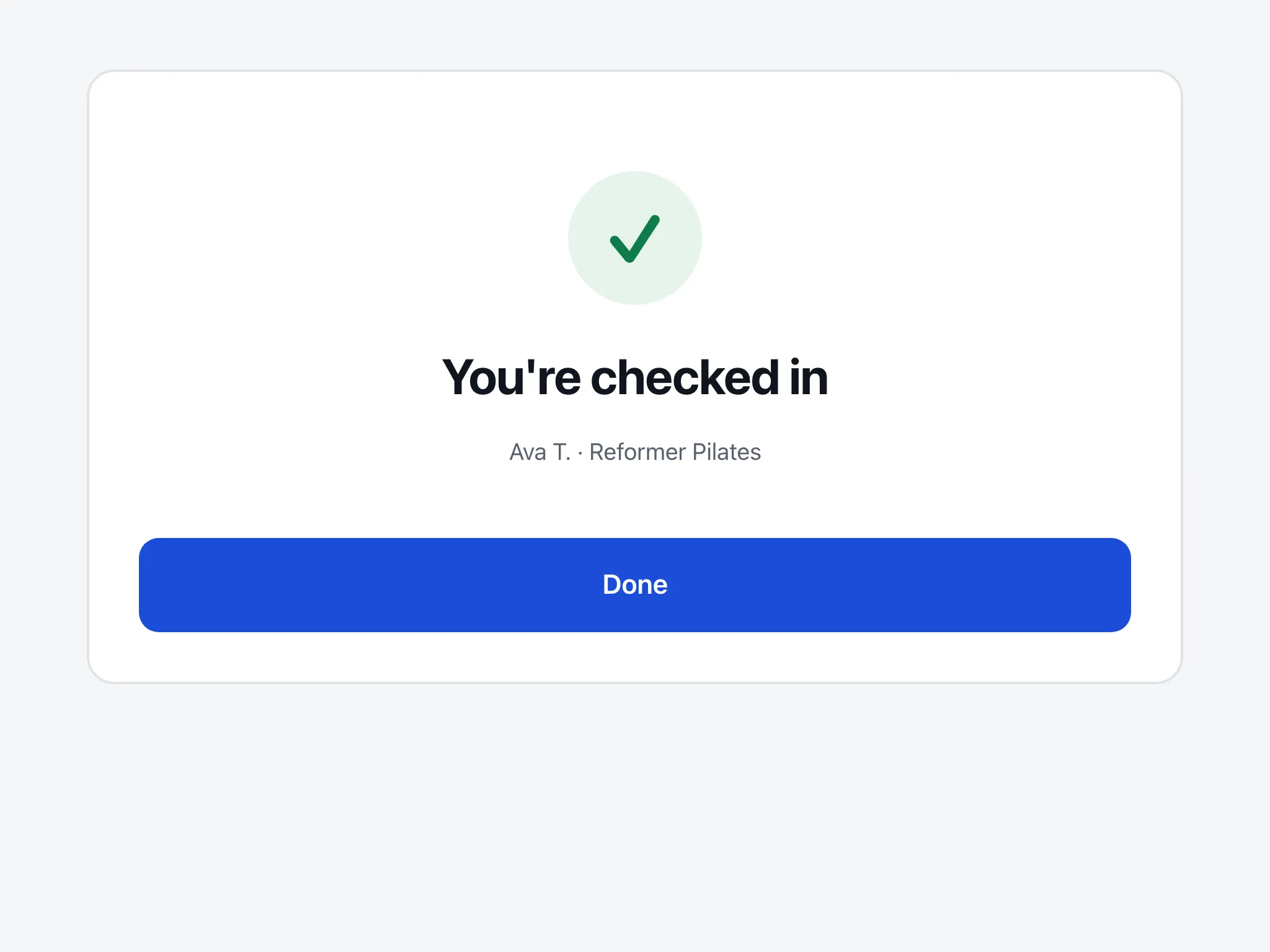
They tap Check in
The screen says "You're checked in" and the booking is marked Checked-In in Wix Bookings.


It checks before it lets anyone in
Set your rules once in the dashboard. The kiosk runs them on each booking before a client can check in. Waiver and payment checks are optional.
Booking and check-in window
The client needs a booking today, and has to arrive inside the window you set: how early and how late check-in is allowed.
Waiver, through Wix Intake Forms
Optional. The client needs a completed intake form that is still valid when their booking starts. Group bookings are always asked to see staff.
Payment or plan redemption
Optional. Wix must record the booking as paid, free, or redeemed with a pricing plan or package. Leave it off if you take payment at check-in.
Confirm it's them
Optional. The client enters the last 4 digits of the phone number on the booking. It's a light deterrent against checking in as someone else.

When someone isn't cleared
Missing waiver? They sign on their phone
If the waiver is the only problem, the kiosk shows a QR code for your Wix intake form. The client signs on their own phone, and the kiosk continues by itself once Wix shows the form as complete.

Anything else: "Please see staff"
The kiosk asks the client to see staff and never shows why, so an unpaid booking stays private. On your dashboard the booking is flagged Needs staff with the reason, such as "Payment not collected" or "Waiver expired". No alert is sent: the dashboard refreshes every 30 seconds.


Staff see who needs them, and why
The dashboard lists the day's sessions and refreshes every 30 seconds. Open a booking to see why it needs staff.


- Live arrivals list with filters: Needs staff, Not checked in, Checked in
- The plan that paid for a booking and, for session packs, the sessions left on it
- Check a client in, mark a no-show, or undo either one after a confirmation
- Attendance is recorded on the booking in Wix Bookings, session by session for courses
Want to see it on your own bookings? Install on Wix and start the 14-day free trial on eligible sites.
Your client list stays off the screen
The kiosk never lists today's clients. Someone types at least three letters of their name and sees matches as first name and last initial, five at most. A tablet works only after you activate it from the dashboard, and you can revoke it at any time.

Where it fits
Class studios
You teach the 6:00 class and you're also the front desk. Students find their name and check themselves in. A course booking shows as "Session 2 of 4", and the dashboard shows the sessions left on the class pack that paid.
Play cafes & indoor play
A parent arrives with a booking but no waiver. The kiosk shows a QR code, they sign on their phone, and check-in carries on. Walk-ins scan a code to book on your booking page first. Group bookings that need waivers are always asked to see staff.
Recreation centers
A drop-in session starts and the desk gets busy. Clients with a cleared booking check in at the tablet. Staff work the Needs staff filter, where each booking shows its reason: payment not collected, waiver expired, too early.
Is it right for your front desk?
A good fit if…
- You take bookings through Wix Bookings and clients arrive at a front desk
- You require a waiver, let people pay at the venue, or sell class packs
- The person checking names is often the person teaching the class
Not for you if…
- You don't take bookings through Wix Bookings. The app requires it
- Everyone prepays and you have no waiver. Wix's free Client Check-In app covers that
- You need check-in with no booking at all. Walk-ins here book first, then check in
One plan, $14.99 a month
$14.99/month billed monthly, or $12.49/month billed yearly. Start with a 14-day free trial on eligible sites.
The 14-day free trial is available once per site, on eligible sites. Wix bills you through the App Market, and you manage the subscription in Wix. Requires Wix Bookings.
- Self check-in kiosk for your front desk
- Waiver, payment and check-in window rules
- Waiver and walk-in QR codes
- Staff dashboard with no-show and undo
Questions
Does it work with Wix Bookings classes, appointments and courses?
Yes, all three. For a course, the kiosk checks the client in for today's session only and shows which one it is, for example "Session 2 of 4". Each session's attendance is recorded separately in Wix Bookings.
Is there a free option?
Yes. Wix makes a free app called Client Check-In. Members tap their name on a session list on a tablet, and you can set a check-in window, how names are displayed, search by name or email and an optional password. If everyone prepays and you don't need a waiver checked at the door, it's the sensible choice.
What do I need before I start?
Wix Bookings with at least one service, a published site, and a tablet for the front desk. Wix Intake Forms is needed only if you want waivers checked. Payment checks use the payment status Wix Bookings already records, so they need no extra app.
What tablet do I need?
A tablet with a web browser. The kiosk runs in the browser, on a page of your own site at /check-in. So far we've tested it in Safari in Apple's iPad simulator, not yet on a physical iPad or an Android tablet. You activate each tablet from your dashboard, and it stays signed in until you revoke it.
What happens to walk-ins?
They book first, then check in. The kiosk shows "Don't have a booking?" for up to six services you choose. A walk-in picks one and scans a QR code that opens that service's Wix booking page on their phone, where Wix handles the time, payment and any forms. Then they check in on the kiosk as usual.
What does a client see if something's wrong?
Only "Please see staff". The kiosk never shows the reason on screen. Staff see it on the dashboard, where the booking is flagged Needs staff with the reason, for example "Payment not collected" or "Waiver expired". No alert is sent; the dashboard refreshes every 30 seconds. If the only problem is a missing or expired waiver, the kiosk offers "Complete waiver on my phone" and shows a QR code for your intake form.
How does billing work?
Wix bills you through the App Market: $14.99/month billed monthly, or $12.49/month billed yearly. Eligible sites get a 14-day free trial, once per site. There is no free plan. You manage the subscription in Wix. If the subscription lapses, the kiosk pauses and asks clients to see staff until Premium is active again.
Self check-in that checks first
Install it from the Wix App Market and try it free for 14 days on eligible sites. Requires Wix Bookings.